As businesses increasingly rely on AI to process private data, it’s essential to maintain control and security. One way to achieve this is by setting up a private AI server that doesn’t learn from your corporate data. In this guide, we’ll focus on setting up and using an Ollama server, a free, open-source framework designed to run Large Language Models (LLMs) on a local workstation or server.
- LLM’s are AI models that perform different fuctions with different data sets.
- Reasoning Models – Specializing in natural language understanding, generating text, and summarizing data like ChatGPT.
- Diffusion Models – Create images and videos from text prompts or visual content.
- Predictive Models – Analyze historical data to forecast trends, such as sales figures, risk assessment, or customer responses.
For this exercise we are going to build a server with a reasoning model.
At first glance it might seems that you need a lot of computing power to run a private AI server, lots of memory, lots of GPU’s. It turns out your really don’t. Different AI models contain different numbers of data points. Small models have a billion data points; really large models have a 120 billion. We are going to be working with the llama3:8b-instruct-q4_0 model, which has 8 billion data points.
To quote google’s AI, “An AI model with 8 billion parameters (often referred to as 8B or 8B-parameter models) is widely considered a “sweet spot” in modern AI for high performance combined with efficiency. While not as generally intelligent as 70B+ models, 8B models can handle complex, general-purpose tasks with high accuracy, making them ideal for running locally, on consumer hardware, or in specialized agentic workflows.”
Setting up the Ollama Server
So let’s get started. If you have read any of my other posts you know that I host most of my servers on VMWare ESXI 8.03. You also are probably aware that the machine I use to host my ESXI is a Minisforum MS-A2 with a 128GB or RAM, expand out to 387GB using memory tiering with and AMD Ryzen 9 processor. We are going to build an Ubuntu 24.04 server. (The latest version as I write this.)
I am not going to walk you through the installation of the Ubuntu server. If you need instruction, please reach out. What I will tell you is that you should assign 32GB of memory and 12 CPU’s to the VM. I would also recommend at least 200GB of disk space. As part of the installation will have the opportunity to install an SSH server on your Ubuntu server. You should do this as it will be much easier to install the Ollama server. Also you should assign a static IP address as this will make your server much easier to find.
Once your Ubuntu server is up and running the rest is really simple. Use the following command to install Ollama:
curl -fsSL https://ollama.com/install.sh | sh
And then install llama3:8b model with this command:
ollama run llama3:8b-instruct-q4_0
Then stop Ollama:
sudo systemctl stop ollama
Edit the Ollama ini file and change the host address to 0.0.0.0 so it will respond to any machine on the network.
sudo systemctl edit ollama.service
Insert the following lines:
[Service]
Environment=”OLLAMA_HOST=0.0.0.0″
Save the file and exit the editor and restart Ollama:
sudo systemctl start ollama
Setting up the clients
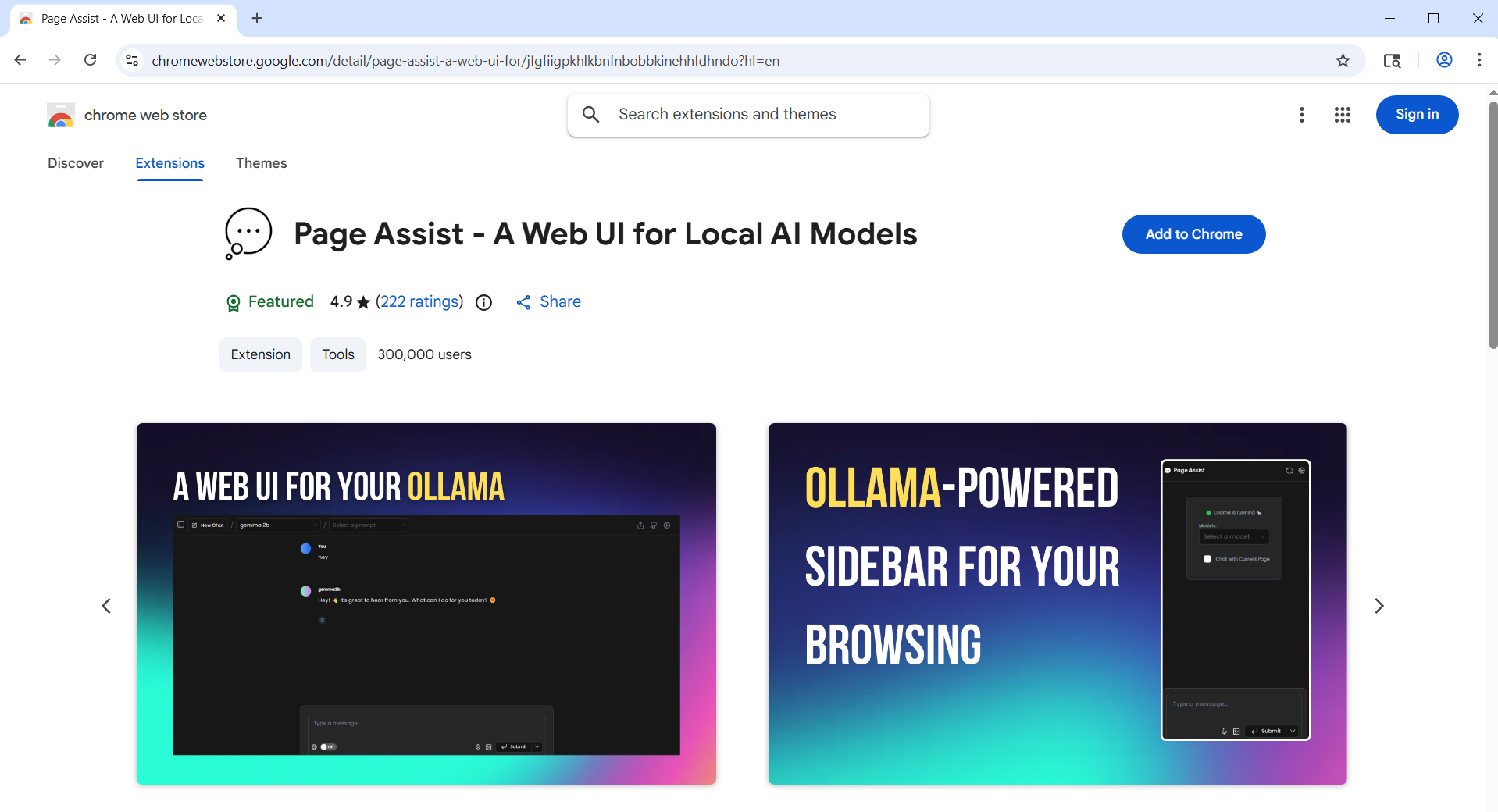
What is really nice about Ollama is that there is a Chrome and Edge extension called Page Assist, the will give your easy and trouble free access to your new server. In Chrome or Edge, install the Page Assist extention.
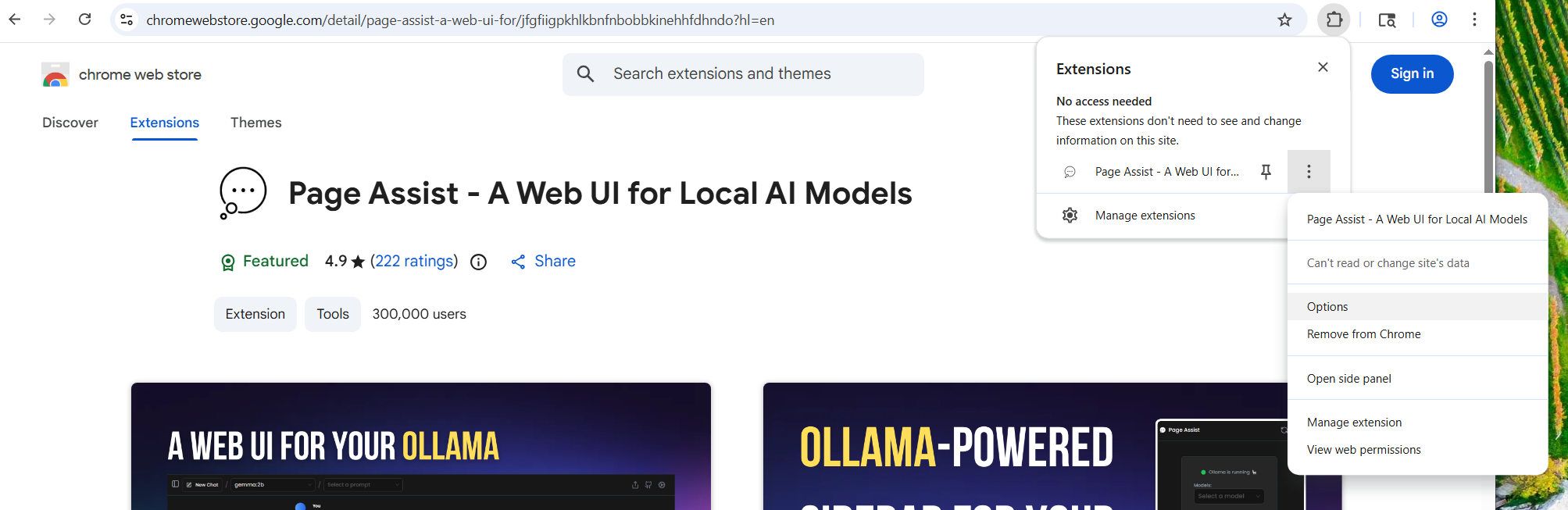
Once it is installed, right click on the extention icon and go to options.
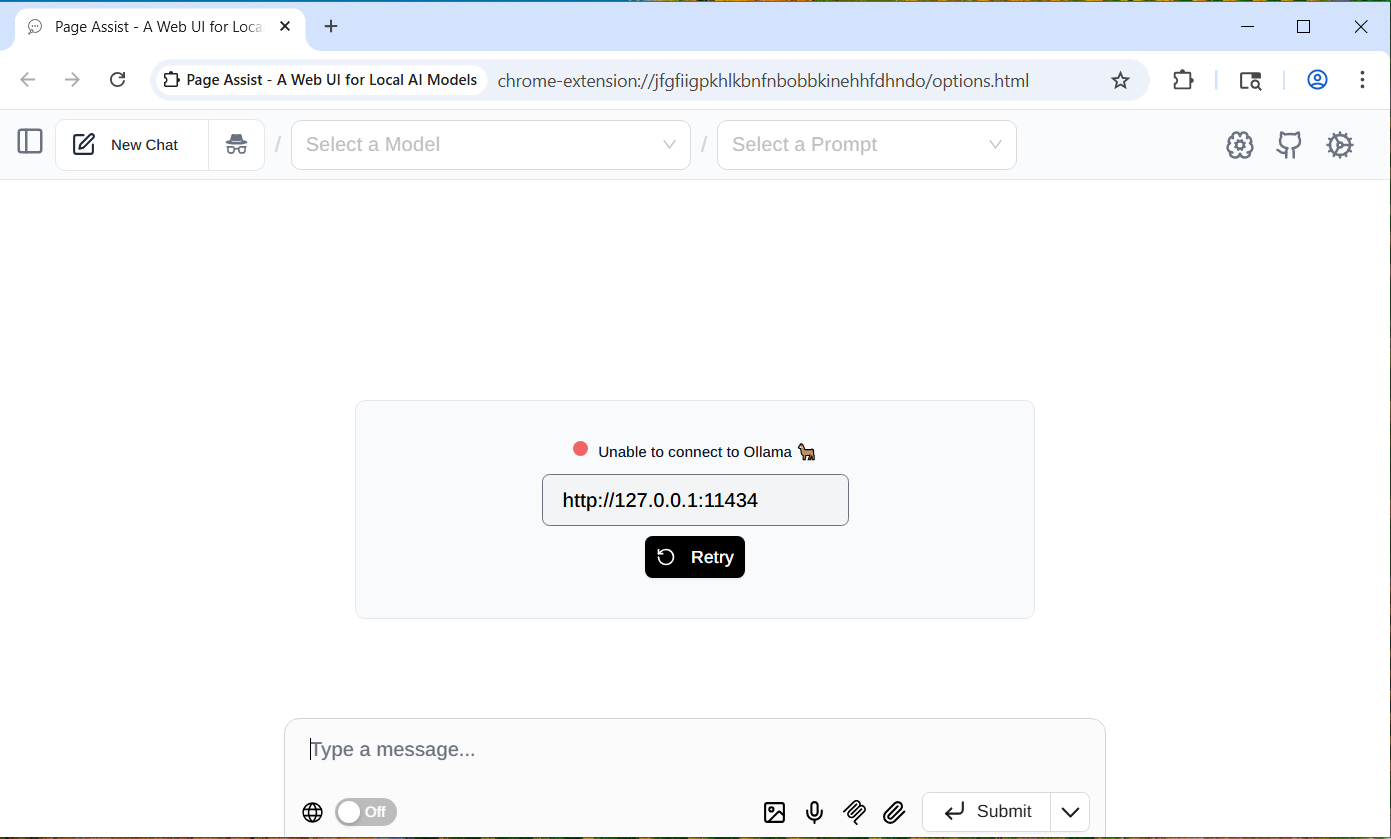
That will bring you to the following Olama Page.
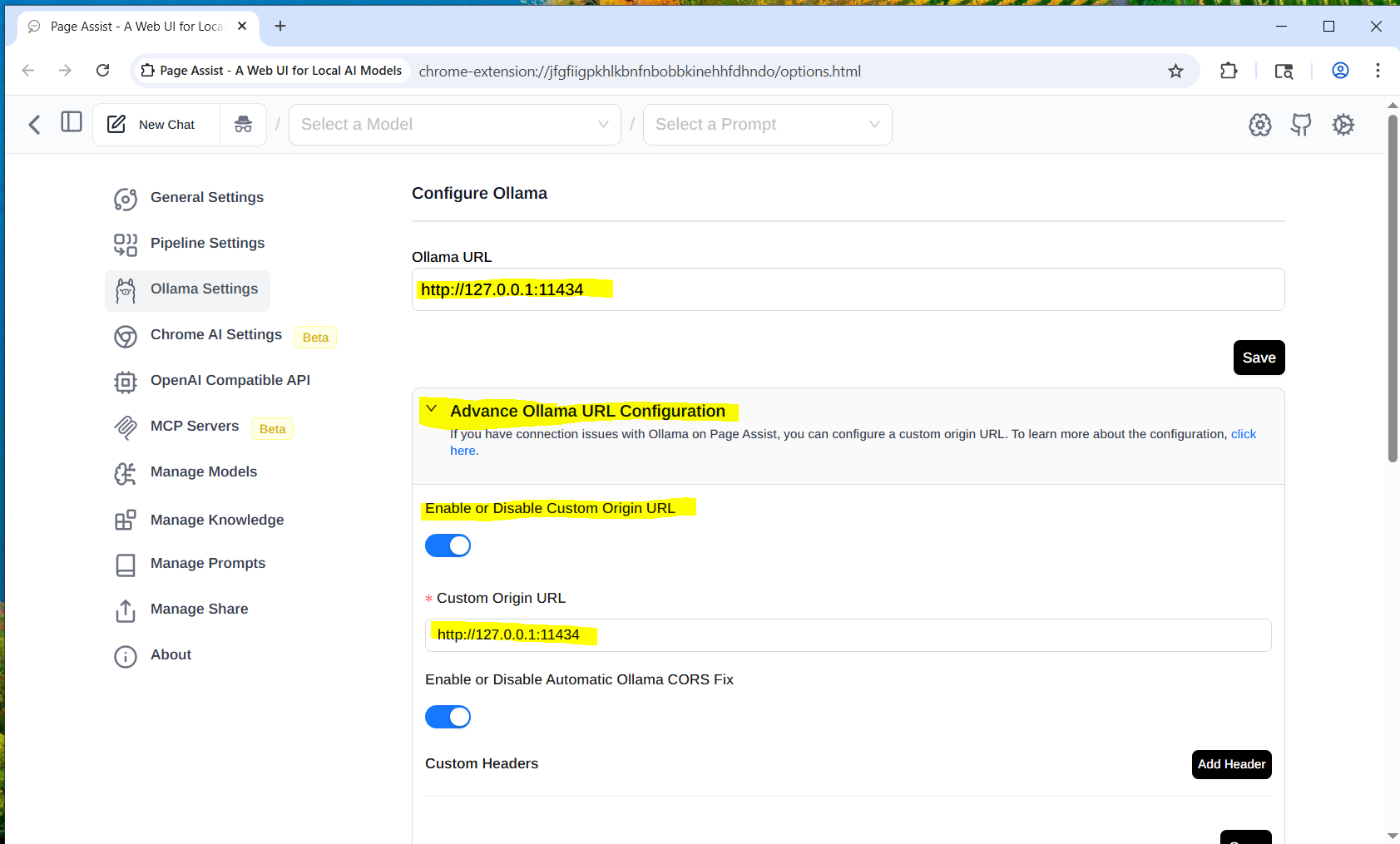
Click on the gear in the upper right hand corner of the page and click on Ollama Settings.
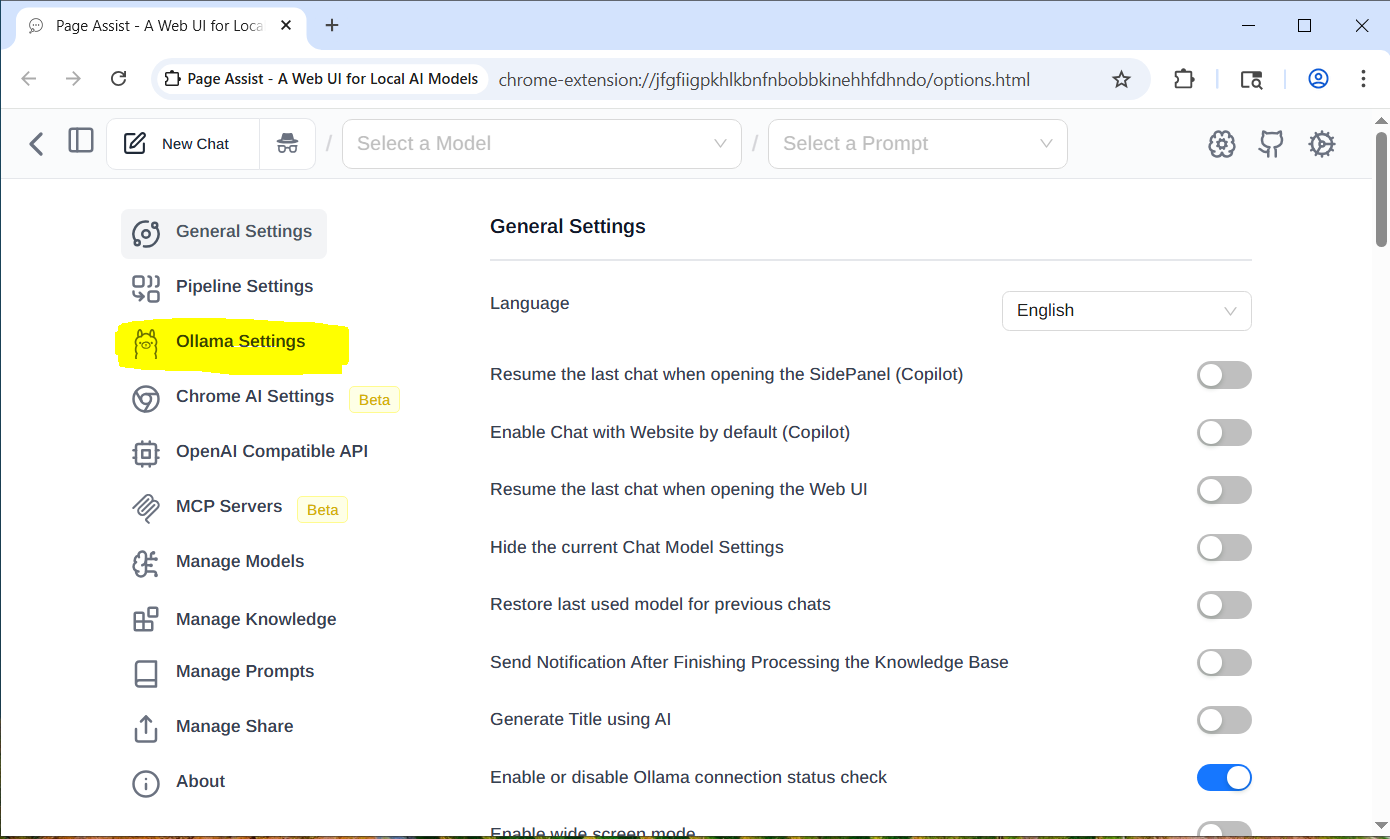
On the Ollama Settings page you need to open the Advanced Ollama URL Configuration, then enable “Custom Origin URL” and both the Ollama URL and the Custom Origin URL to the address of your new Ollama Server. Leave the port number as 11434. And press Save for each address.
Once you are on the Ollama is running page:
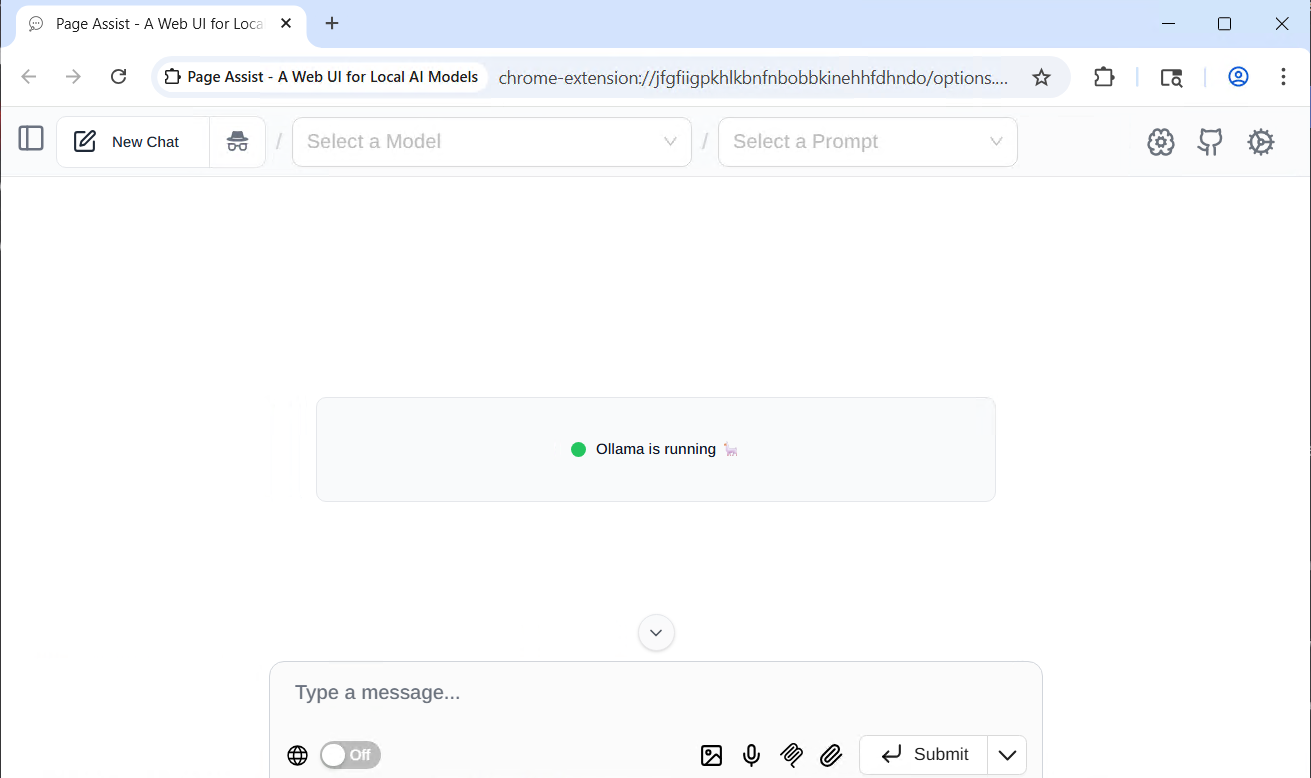
You need to refresh the page and select the model that was installed.
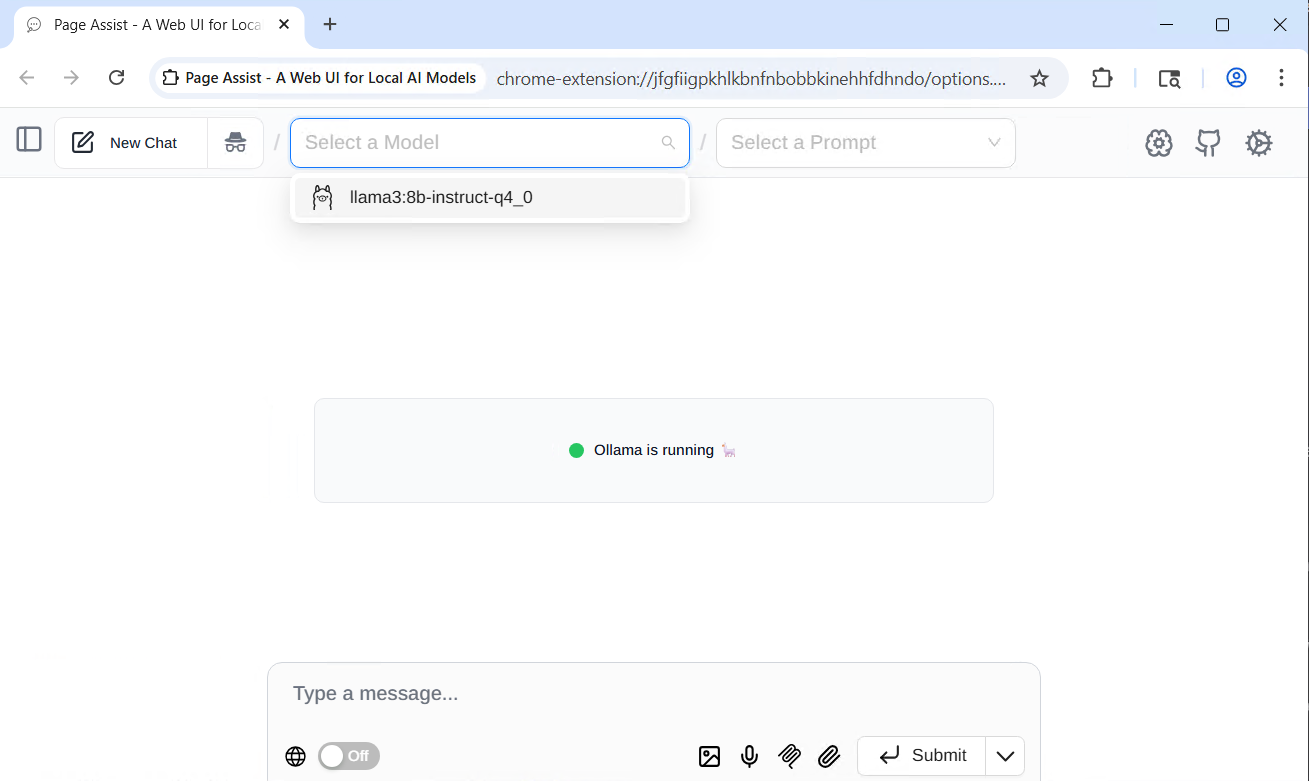
And you are done. You now have a private AI server up and running.